Use Real Extent alongside your existing CRM
You can keep your current CRM and use Real Extent for inbox replies, booking, and follow-ups. There is no direct synchronization with external CRMs, so decide where each part of the workflow belongs before importing contacts.
By the Real Extent team · Updated
Give each job one owner
| Job | A practical starting choice |
|---|---|
| Primary client record | Keep your existing CRM as the record you update after a conversation. |
| Reply to a new inquiry | Let Real Extent prepare the draft. Review it before sending. |
| Follow-up sequence | Choose one system per lead and pause the equivalent sequence in the other. |
| Showing availability | Use a calendar that includes your commitments, and confirm property access separately. |
This is an example setup, not a requirement to migrate. Confirm how replies, pauses, and opt-outs are recorded in both systems because they do not synchronize automatically.
Start with a small contact import
- 1
Export only what you need
Use your CRM’s export feature for contacts you are authorized to handle. Check the file for duplicates and outdated contact details before importing.
- 2
Choose Import contacts
In Integrations → More connections, choose Import contacts and Upload a file. You can also find the import under Add lead on the Leads page.
- 3
Review before following up
Select the people to import and check their details. Importing does not email anyone, and follow-ups for imported people start paused.
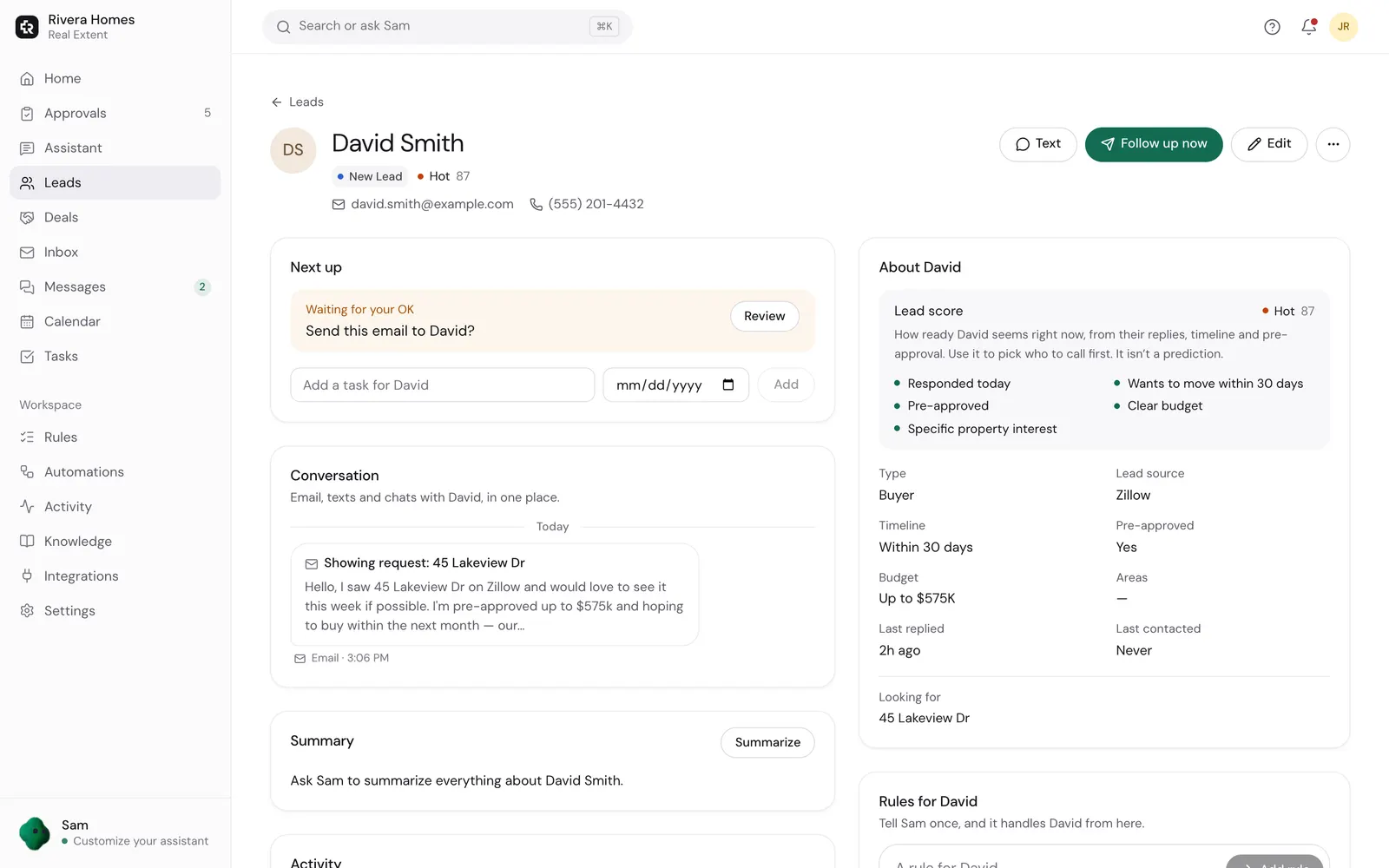
Avoid two systems following up with the same person
Before activating a rule, check the lead’s existing CRM sequence. Pause that sequence if Real Extent will own the same follow-up. Keep sending on Ask first until you have reviewed what the assistant proposes.
Example with invented details: Alex asks for a second showing. Your CRM already has a three-day check-in scheduled. Pause that check-in, arrange the showing through your chosen calendar, and update the CRM with the result. Otherwise an old check-in can arrive after the conversation has moved on.
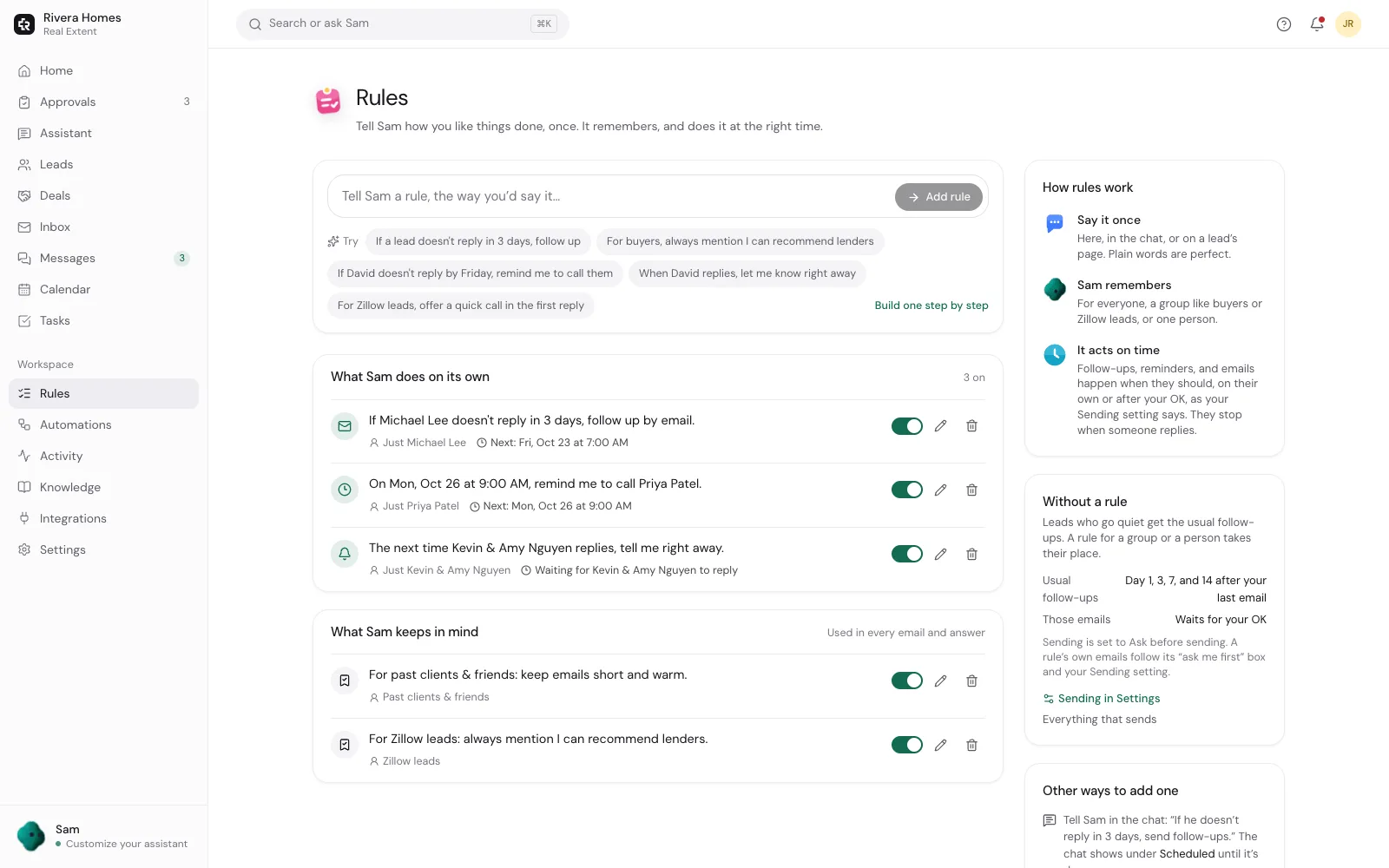
If a person asks you to stop, apply that request in every system that can contact them. A pause or opt-out in one tool is not a shared setting.
Review the first week before importing more
Check for duplicate messages, missed replies, and manual updates you had to make. Expand only when you can explain which system owns each next step. If direct synchronization is essential for your workflow, Real Extent may not fit it today.
Ask for setup help with your CRM name and the task you want to improve. You do not need to send a contact export or client messages to describe the workflow.
Keep your CRM and start with one conversation
Watch the demo and check your provider’s permissions before connecting the inbox you want help with.
Plans from $19/month, billed when you subscribe. Sending starts on Ask first. Need setup help?
Keep reading
- Gmail follow-up guideConnect Gmail or Google Workspace to Real Extent, understand permissions, review a draft for an existing lead, and keep control of follow-ups.
- Outlook follow-up guideSet up Real Extent with Outlook or Microsoft 365. Check brokerage approval, choose your calendar, and review your first real estate lead reply.
- Follow-up email templatesPersonalize 8 free real estate follow-up emails and texts for unanswered leads, buyers after a showing, and sellers. Copy or download, with an example follow-up schedule.