Follow up with real estate leads in Gmail
Use the mailbox where your lead inquiries already arrive. This guide covers Google Workspace approval, connecting Gmail, and reviewing your first draft in Real Extent.
By the Real Extent team · Updated
Check access before choosing a paid plan
Signing into Real Extent with Google and connecting your Gmail inbox are separate steps. Inbox access asks for additional permissions. Google has not verified the app’s data access yet, so you may see an unverified-app warning or be unable to connect. Read our current verification status before proceeding.
If your brokerage manages the account, ask its administrator whether Real Extent is permitted. A verified app can still be blocked by an organization’s policy. Do not switch connection methods to get around a brokerage restriction.
Google explains these controls in its Workspace app-access documentation. If access is uncertain, ask us about setup before subscribing.
Connect the right mailbox
- 1
Choose the account
During setup, or from Integrations, choose Gmail. Select the account that receives the inquiries you want the assistant to help with.
- 2
Review Google’s request
Check the account address and permissions on Google’s consent screen. Continue only if you understand the access and your organization allows it. Stop if Google blocks the connection.
- 3
Check the result
Back in Real Extent, confirm that the connection is active and the Inbox shows the expected account. If it fails, note the error text and contact support without sharing tokens or client messages.
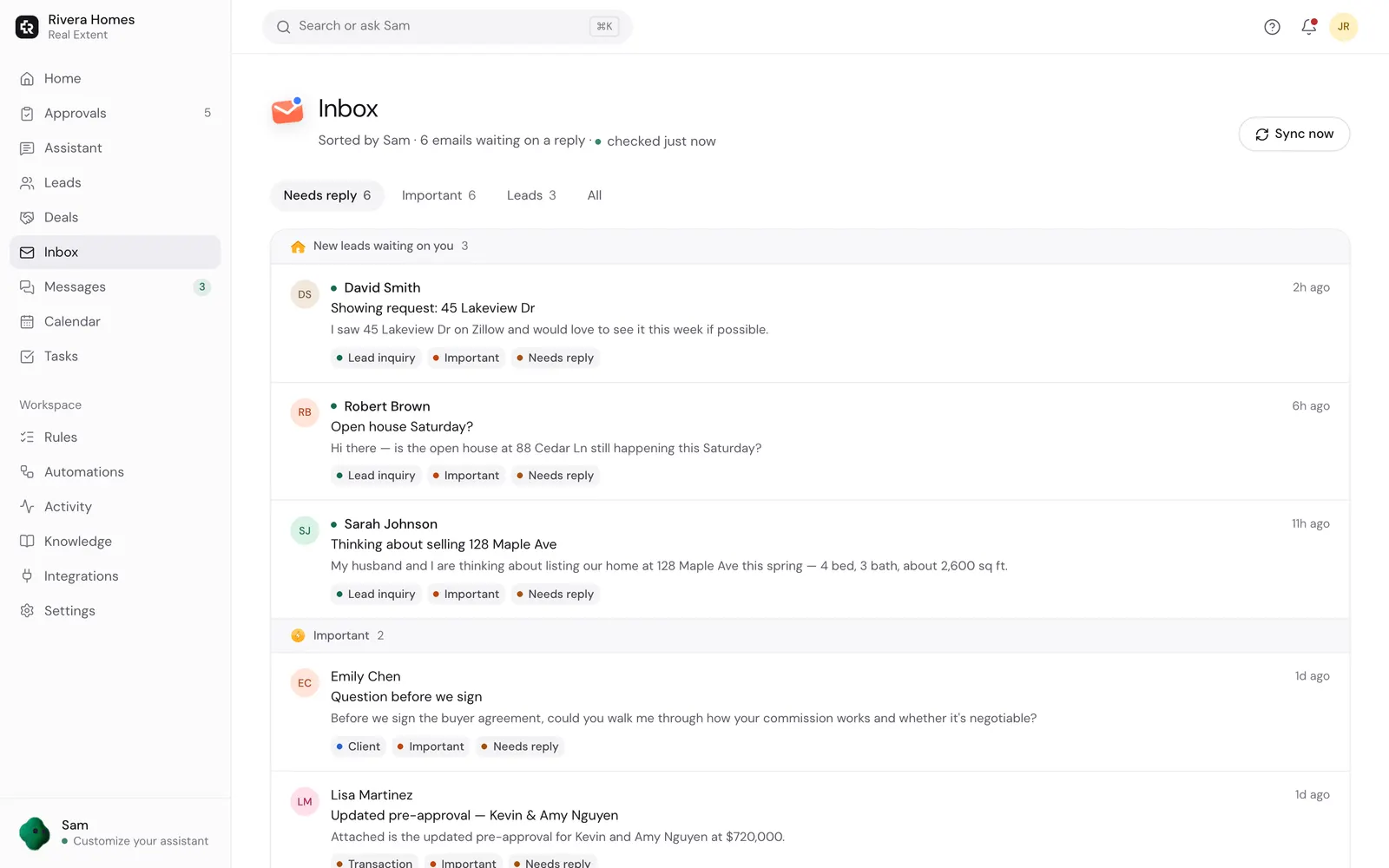
Review one draft before adding automation
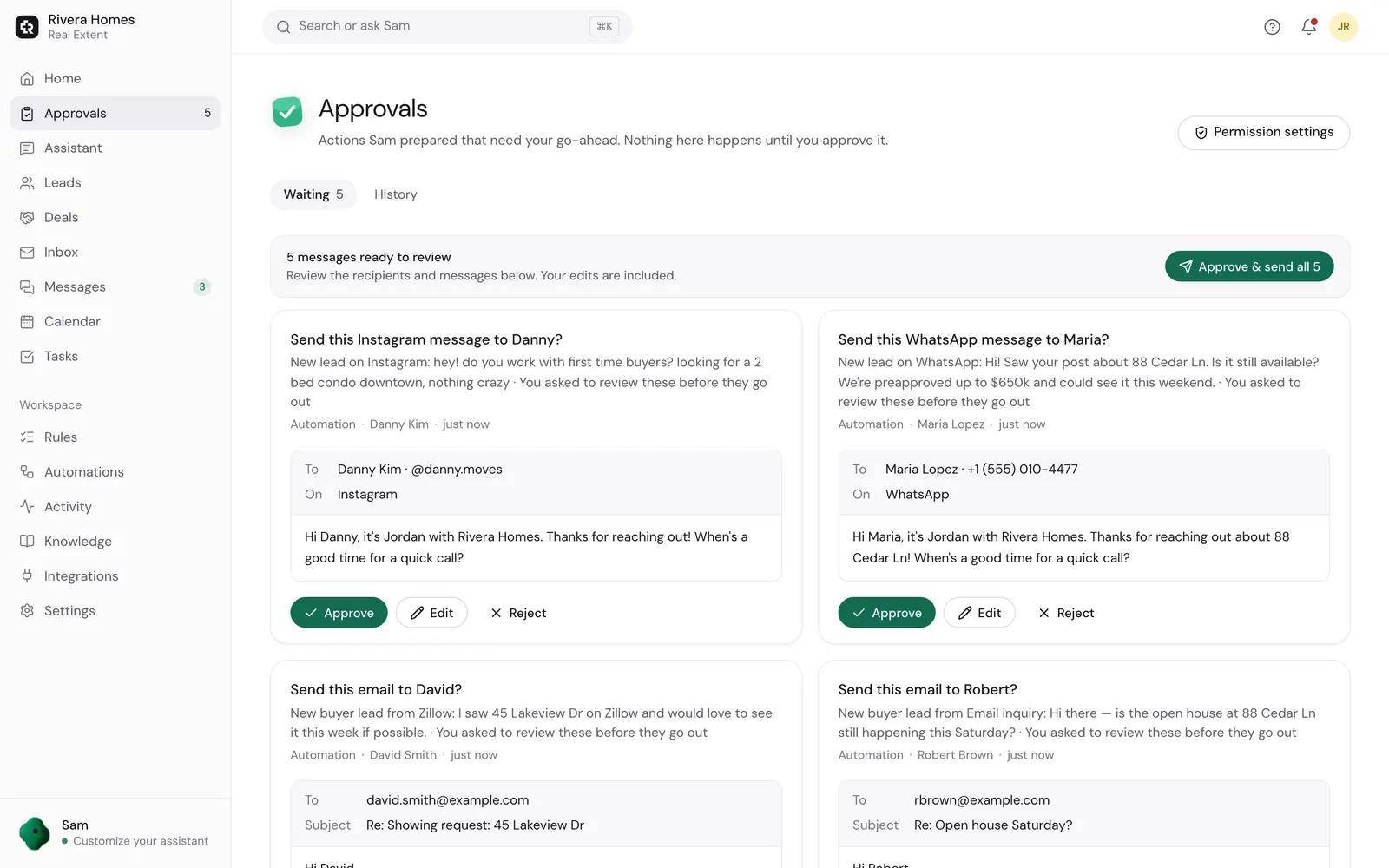
Choose an existing lead conversation. Ask the assistant for a short reply that answers the person’s question and proposes one next step. In Settings → How my assistant works → Approvals, keep sending on Ask before sending.
Check the recipient, property address, availability, and any proposed time. Real Extent has no MLS connection. Approve only after the draft is accurate, then confirm the message in your Gmail Sent folder and the Activity log.
For a new inquiry, the Zillow lead templates provide examples you can adapt. A Zillow inquiry in Gmail does not require a direct Zillow connection.
Questions agents ask
- Will this send follow-ups automatically?
- Sending starts on Ask first. Review the sending setting and any existing rules before enabling automation. Agree on the timing and stop when the person replies or asks you to stop.
- What if I already have a CRM sequence?
- Choose one system to own that lead’s follow-ups before starting another sequence. Follow the CRM setup guide to avoid duplicate messages.
- How do I remove access?
- Disconnect the account on the Integrations page. You can also remove Real Extent’s access in your Google account’s third-party connections settings.
Start with a conversation you already have
Check permissions, keep sending on Ask first, and review one useful reply before expanding the workflow.
Plans from $19/month, billed when you subscribe. Sending starts on Ask first. Need setup help?
Keep reading
- Get setup helpStart with one lead reply. See the setup checklist, request help from the Real Extent team, and understand paid plans and inbox permissions before connecting.
- Using your existing CRMChoose which system owns follow-ups, import contacts without emailing them, and avoid duplicate messages. Real Extent does not directly sync with external CRMs.
- SecurityHow Real Extent protects your account, your inbox and your clients: what the assistant can and can't do, encryption, protection from tricky emails and wire fraud, where data lives, and how to report a problem.